
Windows
Voice typing for Windows.
Kalam is AI dictation software for Windows from Balacode. It is an offline alternative to Win+H: hold Ctrl+Win, speak, and the words land in the app you are using. Run Parakeet, Whisper, Moonshine or SenseVoice on the computer, or pick a cloud engine. Free has no word cap. Pro is $4.99 a month.
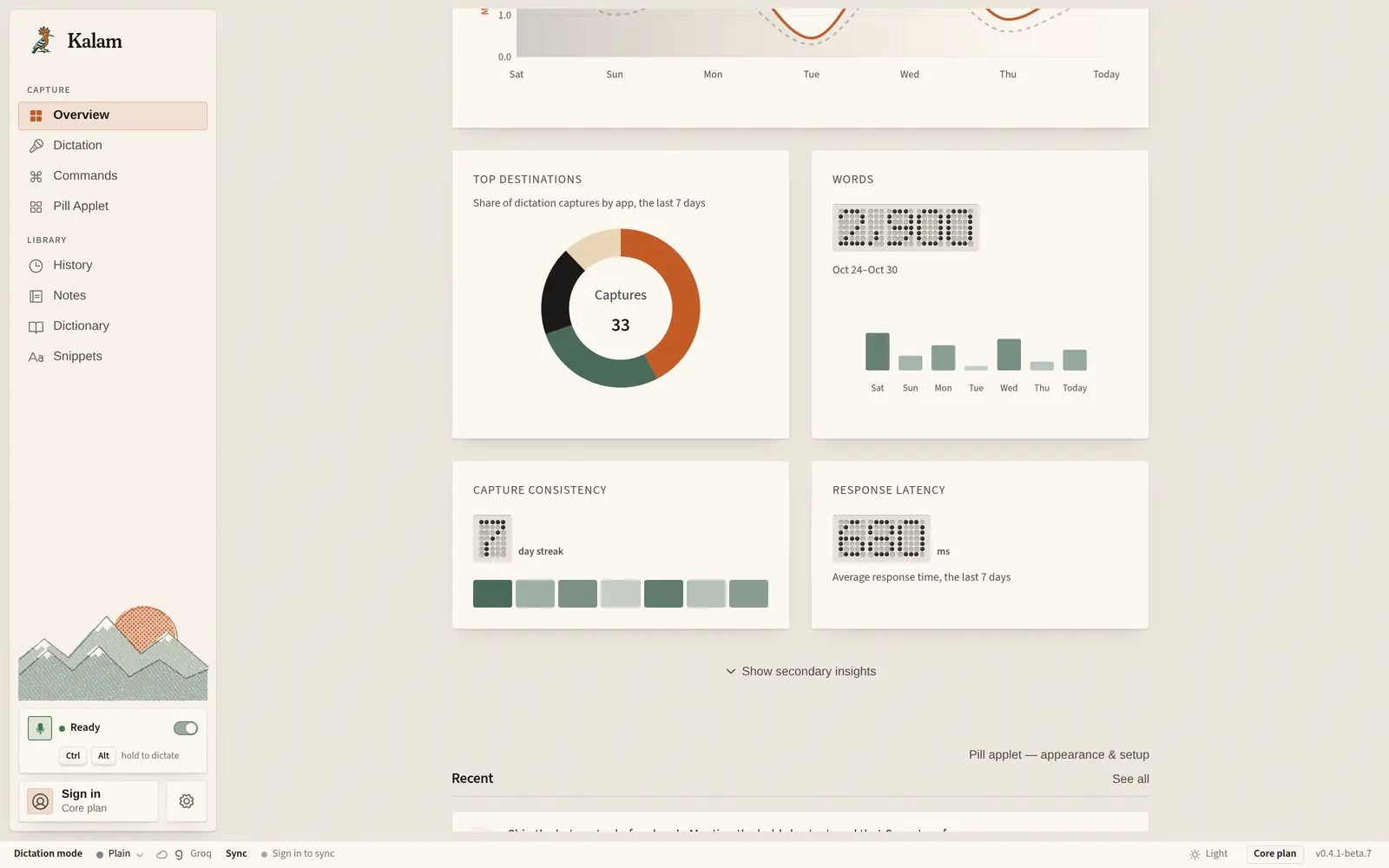
How it works
How to talk to text on a Windows computer
Hold the hotkey, speak, release. The words land at the cursor.
On Windows 11 the default shortcut is Ctrl+Win. Click into the field you want, hold those keys, speak, and let go. Kalam types what it heard into that app. You can change the shortcut in Settings, and you can switch between hold-to-talk and press-to-toggle.
This is dictation software you install, not the built-in Voice Typing bar. Current Windows builds are beta. The first launch may show SmartScreen; that is expected for a beta that is not sold in a store.
If you are comparing tools, Wispr Flow has its own page. This one stays on Windows Voice Typing and talk-to-text on a computer.
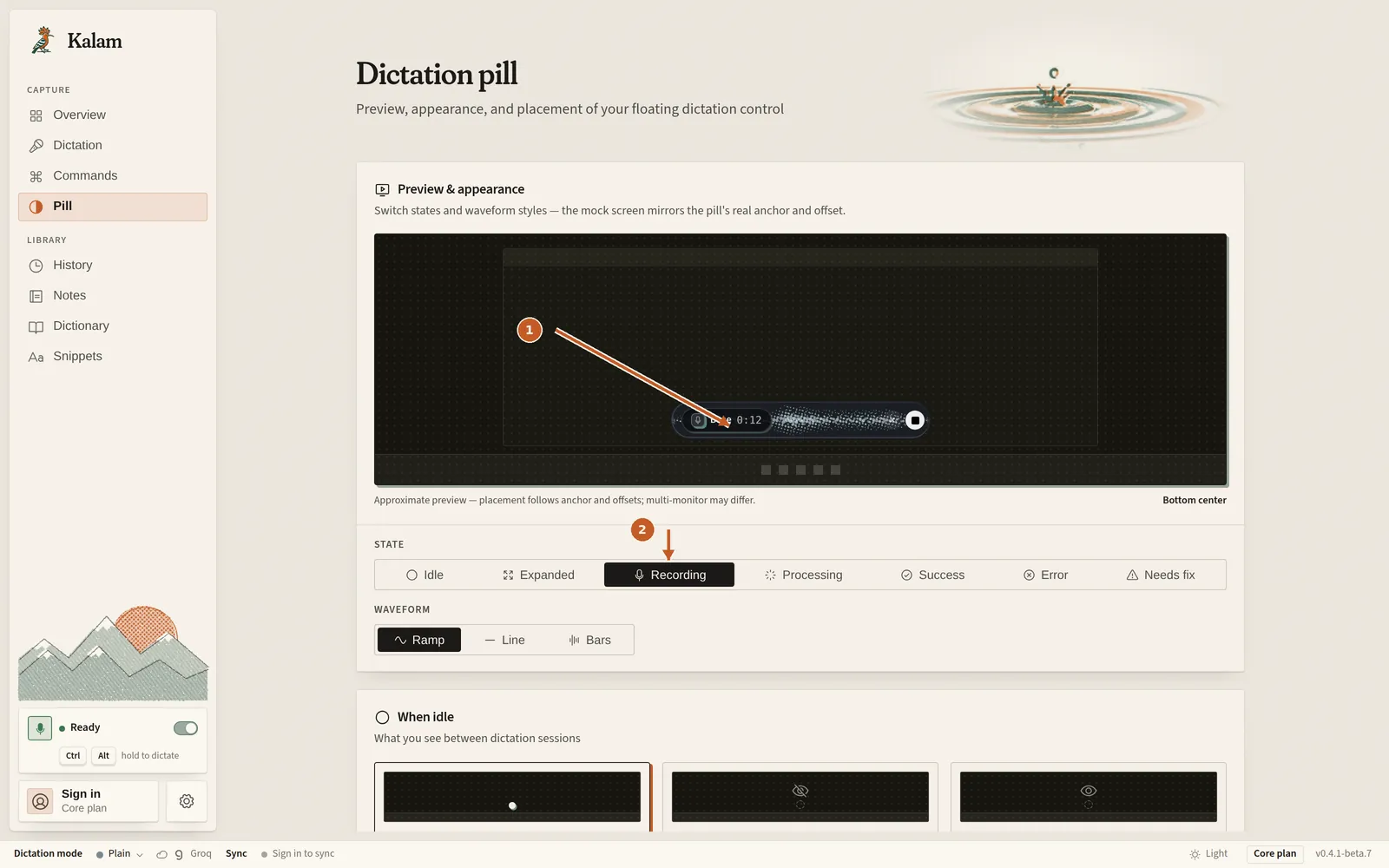
Engines
On-device models, or a cloud engine you pick
On your computer or in the cloud, whichever you like. That is what “offline alternative to Win+H” means here: you can run a speech model on this PC.
On your computer
- Parakeet An on-device speech model you can run on this computer.
- Whisper An on-device speech model. The homepage lists it as the widest set you can run here.
- Moonshine An on-device speech model, built for short phrases.
- SenseVoice An on-device speech model. The homepage lists it for English and Asian languages.
In the cloud
- Groq A cloud speech service you connect with your own account.
- OpenAI A cloud speech service you connect with your own account.
- Gemini A cloud speech service you connect with your own account.
- Deepgram A cloud speech service you connect with your own account.
- AssemblyAI A cloud speech service you connect with your own account.
- ElevenLabs A cloud speech service you connect with your own account.
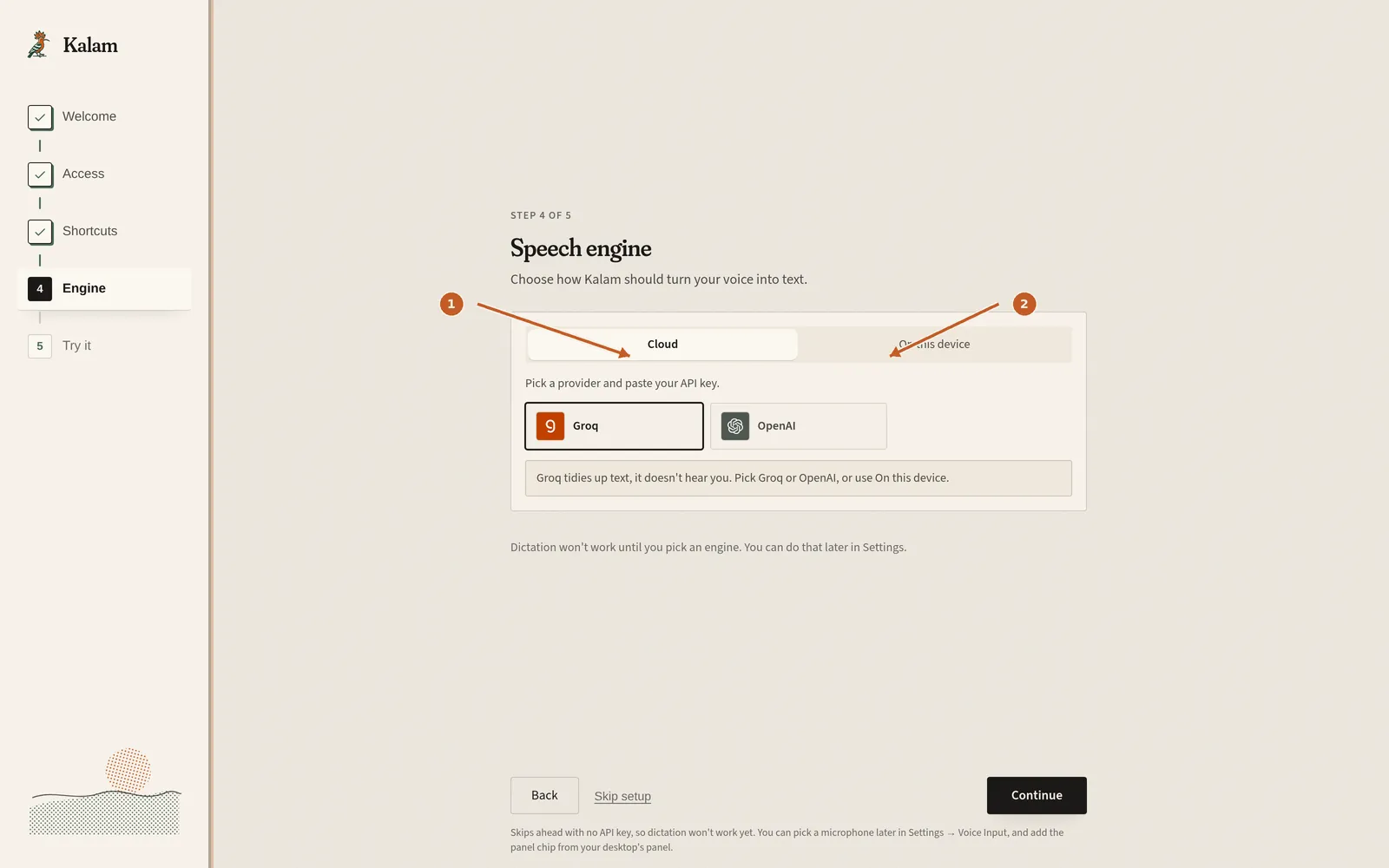
This computer
Windows 11, as a download
Kalam’s Windows beta is for Windows 11 and above. You download the installer from kalamvoice.com/download. It is not listed in the Microsoft Store.
A program started as Administrator is a known gap: the dictation shortcut does nothing while that window is in front. The docs cover that, and the usual fallback, separately.
Compare
Kalam and Windows Voice Typing (Win+H)
Windows Voice Typing is built in. Press Win+H to open it. Kalam is a separate app, and an offline alternative to that gesture.
| What to look at | Windows Voice Typing | Kalam |
|---|---|---|
| Where it lives | Built into Windows 11 | A download from kalamvoice.com/download |
| How you start | Win+H opens Voice Typing | Hold Ctrl+Win (changeable) |
| Speech engine | Windows Voice Typing's engine | Parakeet, Whisper, Moonshine, SenseVoice, or a cloud engine you pick |
| On this computer | Whatever Voice Typing is set to do on this PC | On-device models run here; a cloud engine is a choice |
| Price | Included with Windows | Free, no word cap. Pro is $4.99 a month |
| Systems | Windows | Windows, Mac, and Linux, all as beta |
This is a product-shape comparison, not a ranking. Kalam is an offline alternative to Win+H, not a claim that it is better than Win+H.
Price
Free, with no word cap
Core dictation is free. There is no word cap and no trial clock on Free. You can listen on this PC, or connect a cloud speech service with your own account. Pro is $4.99 a month, or $49 a year, and adds polish, profiles, and sync.
Max is named and not for sale yet. It will run the listening and the polish so there is nothing to connect.
Setup
Set up voice typing on Windows in three steps
From download to the first sentence.
- 01
Download Kalam for Windows
Open the download page and take the Windows installer for this computer.
- 02
Open the app
If SmartScreen says “Windows protected your PC,” choose More info, then Run anyway. Allow the microphone when Windows asks.
- 03
Hold Ctrl+Win and speak
Click a text field, hold Ctrl+Win, speak, and release. The words should land at the cursor.
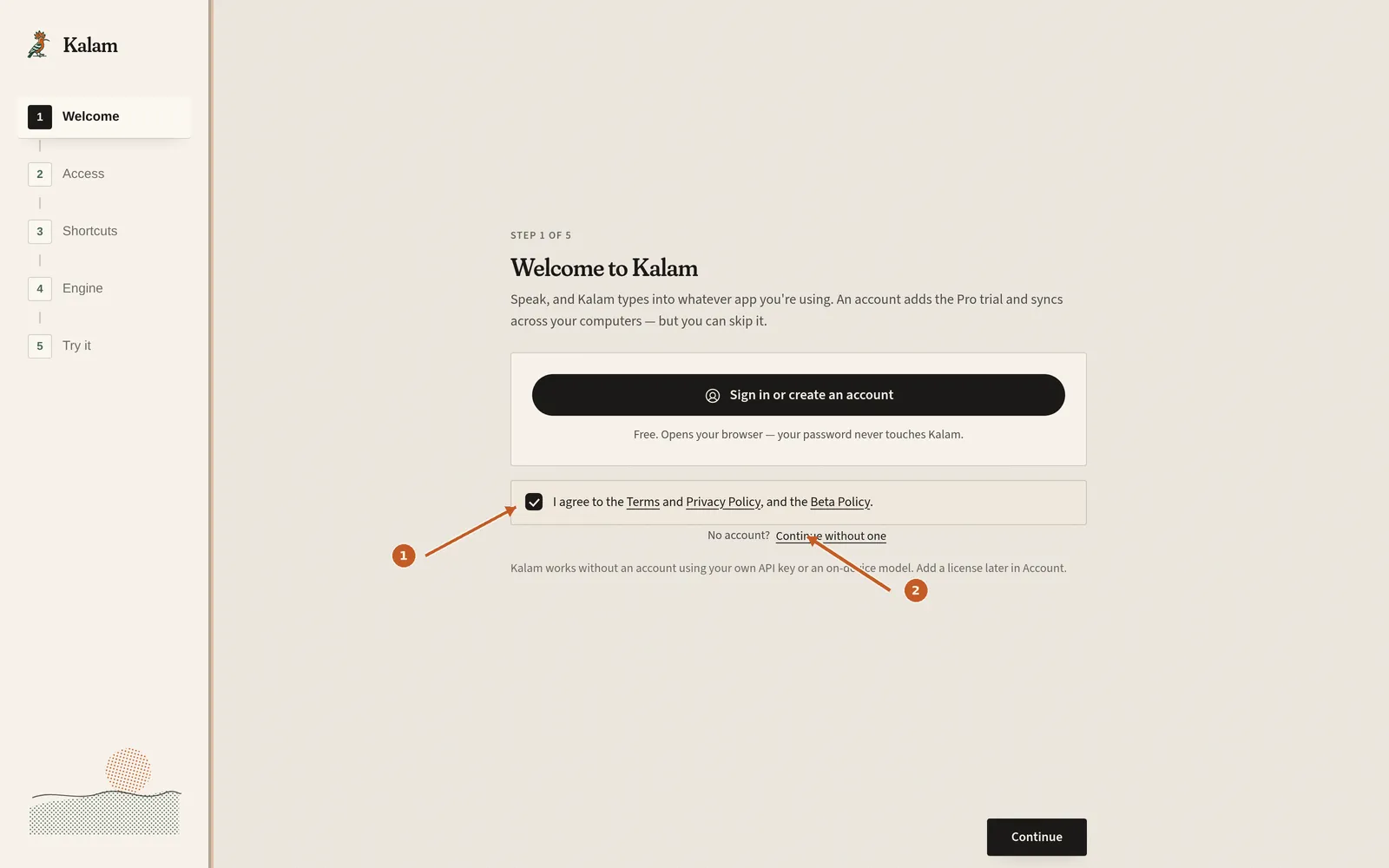
Questions
Straight answers.
What is Kalam voice typing on Windows?
Kalam is AI dictation software for Windows from Balacode. Hold Ctrl+Win, speak, and the words land in the app you are using. It is an offline alternative to Win+H.
Is this better than Win+H?
That is not the claim. Windows Voice Typing is built in; press Win+H to use it. Kalam is a separate app you download, and an offline alternative to that gesture, because you can run a speech model on this computer.
What is the shortcut?
Ctrl+Win by default on Windows. You can change it in Settings, and you can switch between hold-to-talk and press-to-toggle.
Does talk to text on this computer work without the internet?
Yes, if you pick an on-device engine — Parakeet, Whisper, Moonshine, or SenseVoice. A cloud engine and polish need a connection.
Is it free?
Yes. Free has no word cap. Pro is $4.99 a month or $49 a year for polish, profiles, and sync. See Kalam pricing.
Is Kalam in the Microsoft Store?
No. You download it from kalamvoice.com/download. It is not listed in the Microsoft Store or the Mac App Store.
What about Wispr Flow?
Wispr Flow is a different product. The compare page is the matchup; this page does not target that search. See the Wispr Flow alternative page.
Does it run on Mac too?
Yes. There is a Mac dictation page, and the download page lists the Mac beta next to Windows and Linux. See dictation for Mac.
Download free. Dictate on this PC.
Windows 11 and above. Beta today. An offline alternative to Win+H.